
PSA Tip for doing correct time entries
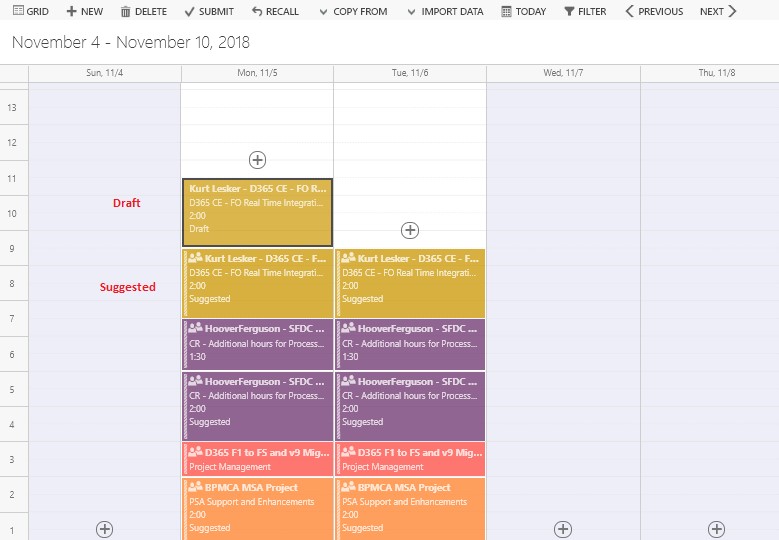
Often, I find my team members doing mistakes at the end of the week while doing time entries for the week. I being so strict about resource allocation of each one of them also did not solve my purpose 100%. But, doing the allocations absolutely perfect made my simple though with the solution I followed. PSA has a feature in the Time Entries screen to import the “Resource Bookings”. I jumped out of happiness by looking at this feature. This not only made my billing procedure simple but faster though. Following is what I told my team members to do to achieve the same. Open the Time Entries screen. And click on Import Button. Select option Resource Bookings Option as shown below. Time Entries then gets fetched from the Resource allocation done in the schedule board. Below is how the screen looks. We then open each time entry by double clicking on it and add the comments. Upon saving the time entries status changes from suggested to Draft and there is one more entry that shows up on the Time Entry screen, which is solid in color and not faded. Below is how it looks. Likewise, when all the time entries are done, we should refresh the page and then the suggested time entries are gone only the Draft time entries remain. You can then submit the Draft Time entries and follow the normal approval process of the time entries. This reduces the errors in the time entries that the team does.
Chargeability view substitute in PSA V3
Of my past deployment done for my customers on V2 version of PSA, I saw an addiction to Chargeability view to modify the Quotation and get to the appropriate pricing. In V3 PSA has gone away with Chargeability view. There is nothing to worry about as I am going to show how to accomplish the same in V3. Let us take the following scenario to understand this better: I have prepared a Quotation for Rotary Club. They need CRM to be implemented. By default, the price list that gets tagged is that comes from the Opportunity that we create or the one that we tag while the Quotation. Let’s check the price of a developer in the default price list in the below screen shot. The default price that it shows is 1250/-. I built a quotation to the customer based on my default Sales Price list and below is how it looked. The quote is for now 12500/- for 10 hours requirement gathering. After submitting the quotation to the customer, they cam back with the request to reduce the pricing. Now how do we achieve this in V3 vs V2. In V2 we could do this via Chargeability view. In V3 we will need to follow the steps mentioned below: Open the Quote. Click on “Project Price Lists” as shown in the below image: Click on Create Custom Pricing and PSA creates a custom price list for the quote where you can store the negotiated price like you used to do it in the Chargeability view. Open the price list by clicking on it. There you can navigate to Role Prices. Select the line which you want to update the price and click on the Edit button that comes up on the head of the grid. Then you can proceed to update the prices as per negotiation. Post the prices are updated click on the Activate button. The sequence is well shown in the image below, that makes the process pretty intuitive. Navigate back the Quote line and follow one more last step as mentioned below: If you open the Quote line details to see if the prices have been updated, you will see that the prices are still the old. In Order to reflect the new updated roll prices, open the lineàRemove the Roll and re-enter the roll to fetch the updated price. Updated Quote with updated price looks like below: That’s it, you have achieved the functionality.
Reconciliation view & Scheduling a resource in PSA V3
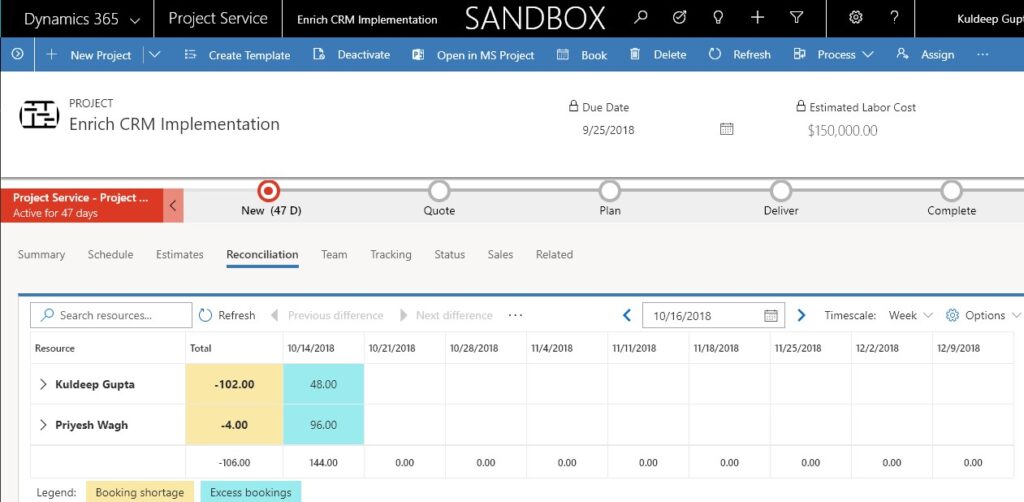
I got some hands around to play with the reconciliation view in PSA v3. You remember my previous blog that talked about “Booking resource on a project task or a service ticket” (Link for the blog for your reference https://community.dynamics.com/365/projectserviceautomation/b/d365psacloudfronts/archive/2018/06/07/booking-resource-on-a-project-task-or-a-service-ticket-in-psa) That is something like what V3 Schedule and Reconciliation together offers us. The only missing element is that still the resource cannot be allocated on a task but is booked on a Project. In order to navigate to the Reconciliation view, you can go to Project ServicesàProject à Reconciliation View. Below is how the reconciliation view looks like. Now let me tell you the difference in both the approaches: 1. In v2 we needed to book the resources via generating the resource requirement vs In v3 we can directly allocate resources on the project. 2. In v2 only if you book the resource on the project does the team member gets added in the project. vs In v3 the resource gets directly added as a team member to the project once added on the task on Schedule. 3. In v2 once the team member gets added on to the project then we could come on the project task and then assign the resource on the task. Meaning that the booking was compulsory in v2. vs In v3 as the team member is added directly on the task, he by default gets the access of the task. 4. In v2 there is no good place where we can go and check how much time of a resource is pending to be utilised or scheduled on a project. vs Reconciliation view in v3 gives a good overview of how much time a resource is still owing the time on project. How the resources appear in the Reconciliation View and how to read it? Once the project plan is prepared in the Schedule, you can add the resources on that task in the “Resources” column of the schedule. Post that they are not only added to the Team with a default Team Member role, which can be edited later on, but appear in the reconciliation view above. -102 hours are pending hours that are yet to be scheduled for Kuldeep via the schedule board. The colour coding itself justifies Pt.3 where Yellow means that there are some hours still left to be booked and blue means that he is over booked or fully booked for 24 hours a day. The above explains the reconciliation view in detail. The views expressed above are solely my learnings and findings on PSA V3.
Booking resource on a Project Task or a Service Ticket in PSA
PSA doesn’t have the capability OOB to do the allocation’s over the task. This means the resource booked are booked for a project and we cannot identify what task they are going to perform or are booked for. This is the real time scenario which a PM regularly comes up with while allocating. To this I have figured out a solution that can be worked upon. Write a Plugin to create a Resource Requirement record on creation of Project Task in the WBS.
PSA – Import project lines from WBS Pre-Requisites
We often face difficulties while trying to import project lines from WBS while using PSA (Project Service Automation). After lot of trouble shooting I try to doubt my configuration and see if they are good. To my surprise they all appear to be good. Following two things needs to be ensured to import project lines from WBS into Quote line details.
Raise and expense entry for a Fixed Bid Project in D365 PSA
Let’s consider a scenario where we need to raise an expense entry for a Fixed Bid project. PSA by definition does not charge for expenses. If you want to have fixed price for the project and expense to be charged for other things, you need to do it via adjusting the contract.